









Getting a new connection working properly involves more than plugging in a cable. An EE Full Fibre setup covers hub placement, wireless configuration, and optional extras like extenders or backup connections. This guide walks through the hardware, the home network options, and what to do if something does not connect as expected.
Understanding EE Full Fibre Broadband Technology
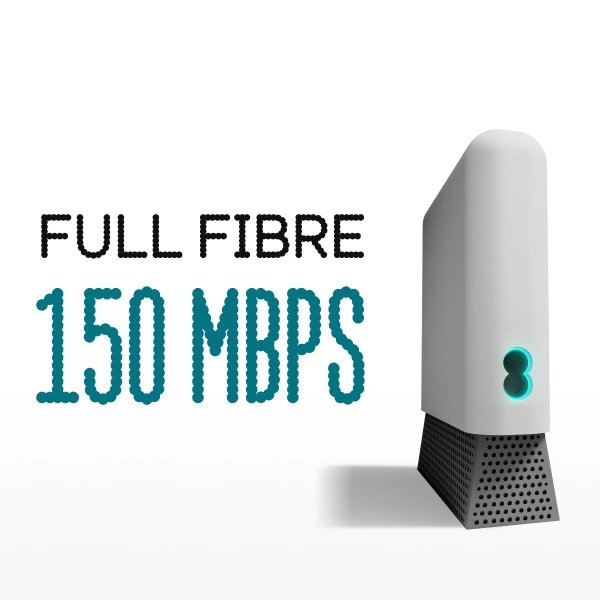
Full Fibre broadband replaces the older copper line with a fibre connection running to an Openreach modem inside the home. That modem then links to a router, which distributes the signal around the property. EE Mobile positions its Full Fibre service as a faster, more consistent option than standard broadband, and the brand has been recognised as Uswitch’s National Broadband Provider of the Year.
The physical setup is simpler than it sounds once the cabling is in place. A single cable connects the modem to the router, and from there the home network takes shape. The Full Fibre setup follows a fixed sequence of steps rather than open-ended troubleshooting.
EE Smart Hub Features and Capabilities
EE Mobile supplies several generations of its Smart Hub alongside Full Fibre packages, including the Smart Hub 7 Max, Smart Hub 7 Pro, Smart Hub 7 Plus, Smart Hub 6 Plus, a newer Smart Hub release, a Smart Router, and an earlier Smart Hub release. Each model carries its name printed on a sticker on the back, which matters when looking up specific support guidance. The hubs share a common design logic even though features differ slightly between generations.
Every hub includes a status light on the front that indicates connection state, a WPS button for quick device pairing, and a QR code on the rear panel for camera-based setup. A WiFi details card lists the network name and password, which also appear printed on the hub itself. These details are the starting point for connecting phones, laptops, and tablets to the home network.
Setting Up the EE Smart Hub for Full Fibre
The standard installation starts with connecting the white cable that has red ends into the socket marked WAN, or port 4, on the back of the hub. The other end plugs into the Openreach modem’s socket labelled Port 1 or LAN1. Once that physical link is made, the power supply’s two parts slide together until they click, and the cable connects to the back of the hub.
After the hub is plugged into a power socket and switched on, the front light turns green to show it has powered up. It takes about three minutes for that light to turn solid blue, which signals the hub is ready for use. If the light stays on another colour or pattern instead, each hub model has its own light guide explaining exactly what that signal means and what action it calls for.
Devices then join the network using the printed WiFi name and password, the QR code, or WPS pairing for compatible devices. This final stage completes the core Full Fibre setup and leaves the home ready for everyday use. EE Mobile’s support documentation also covers additional equipment such as extenders or a backup connection, which can be configured afterward through separate instructions.
WiFi Extender Integration with the Smart Hub
Homes with larger floor plans or thick interior walls sometimes need more than the hub alone can cover. EE Mobile offers WiFi Extenders designed to work alongside the Smart Hub to improve wireless range in rooms further from the router. These extenders are set up through a dedicated process once the main hub is already online.
Extenders are not required for every property, but they become relevant once weak signal areas appear in daily use. Pairing one typically happens after the primary Full Fibre setup is confirmed stable, since the extender relies on the hub’s existing network credentials. A Connectivity Backup option is also available for households that want continuity if the main line drops.
Configuring a Third-Party Router with EE Broadband
Some households prefer to use their own router rather than the supplied Smart Hub. Because the fibre connection terminates at the Openreach modem, a third-party router can connect to that same modem port in place of the EE Smart Hub. The modem itself remains the entry point for the fibre signal regardless of which router handles the home network afterward.
Configuration details vary by router manufacturer, so settings such as the connection type and authentication method need to match what the line requires. Anyone moving away from the bundled hub should keep the original WiFi details card in case a fallback to the Smart Hub becomes necessary. Mixing hardware this way is a common reason people contact EE Mobile‘s support when a setting does not match expectations.
- Connect the modem to the hub using the WAN port and the matching LAN1 port on the Openreach modem.
- Wait for the front light to settle on solid blue before expecting internet access.
- Use the printed WiFi card, the QR code, or WPS to join devices to the network.
- Check the hub’s model name on the rear sticker before searching for specific support steps.
- Set up WiFi Extenders only after the primary hub connection is confirmed working.
- Keep original hub credentials safe when switching to a third-party router.
Troubleshooting and Support for EE Broadband
When something goes wrong, the hub’s front light is the first diagnostic tool. A solid aqua light on the Smart Hub 6 Plus, for example, shows the hub is connected to broadband, while other colours point to startup, connection, or low power states. That same light logic carries across the other hub generations, though the exact colours can differ by model.
If a device that worked before suddenly cannot connect, moving closer to the hub can rule out distance as the cause. Restarting the device, or turning the hub off for two minutes before switching it back on, resolves many temporary issues. For anything that persists, logging in online lets support test the connection remotely, restart the router, or arrange an engineer visit.
EE Mobile also maintains a community forum and physical stores for cases where remote fixes are not enough. Combining the light indicators with an online connection check usually narrows down whether the issue sits with the hub, the device, or the line itself. Reviewing the broadband plans through the programme offer link gives a clearer picture of which hub ships with a given package.
A well-placed hub and patience with the light sequence cover most of what a Full Fibre setup requires.